
ZArchiver
ZDevsTools
4.215.31K Reviews
- Version
- 1.0.10
- Installs
- 100.00M
- Age Rating
- Everyone
Screenshots
Our Review of ZArchiver
 Analysis by Appyee
When a file arrives as an archive, I want to see what is inside and get the contents where they need to go without turning a small task into a computer chore. That is the practical job ZArchiver handles on Android: working with compressed files directly on a phone. It is a free tool from ZDevs, and its appeal is less about visual polish than about having useful archive operations close at hand.
What free access means in practice
The app costs nothing to download, which makes it easy to try for an occasional task as well as for regular use. I would not treat “free” as a promise about every possible extra or future change; the useful point for a decision today is that the app itself is available at no charge. If you only need to open a compressed folder now and then, there is no purchase decision to make before testing whether it fits your routine.
ZArchiver has a 4.1 average from around 1.4 million ratings, and it has passed 100 million installs. Those figures suggest that it has become a familiar option for Android users, but popularity alone does not tell me whether the interface will suit you. I would judge it by a simple question: do you often need to inspect, extract, or create archives on your phone rather than waiting until you have a computer?
A focused tool, not a replacement for everything
I find the clearest value in being able to handle archive work where the files already are. A typical file manager may be enough for browsing folders, moving documents, or sharing photos, but its archive tools can be limited or awkward. ZArchiver is a more focused choice when the task is specifically to open or make a compressed file. It complements a general file manager rather than making every other file tool unnecessary.
That distinction matters when deciding what to install. If your usual needs are simply locating a download and opening a photo or PDF, a dedicated archive app may stay untouched most days. If you regularly receive compressed documents, keep project folders together, or need to inspect an archive before extracting everything, the narrower focus becomes worthwhile. I see it as a practical utility to keep available, not an app that needs to be part of every daily routine.
Small workflows that make a difference
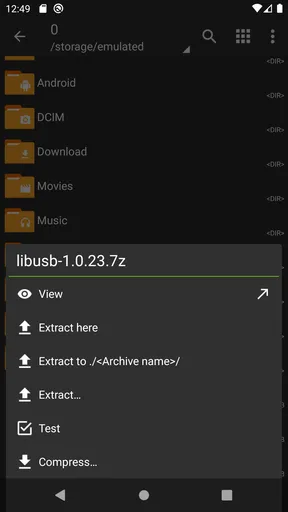
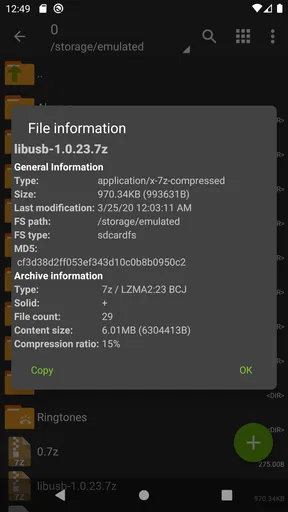
One useful habit is to inspect an archive before unpacking it. When someone sends a bundle of files, checking its contents first can help you avoid scattering everything into a folder you later have to clean up. I would extract only when I know where the material belongs, then use a clearly named destination so that documents, images, or project assets remain easy to find.
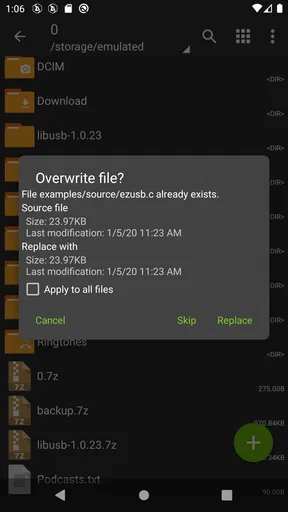
Editing an archive can also save a step. If a compressed package needs one item added or removed, ZArchiver can make that change without requiring you to unpack the entire archive first. I would use that for a modest revision to a bundle, while keeping an untouched copy of anything important. That is a sensible safeguard: archive editing is convenient, but the original remains useful if you make the wrong change or need to compare versions.
Split archives deserve a little care. Their pieces belong together, so I would keep them in the same folder and avoid renaming individual parts before opening the set. That is especially helpful when a download or transfer has produced several files rather than one complete archive. If extraction fails, checking that all pieces are present and kept together is a better first step than repeatedly tapping the same command.
Getting to Know ZArchiver
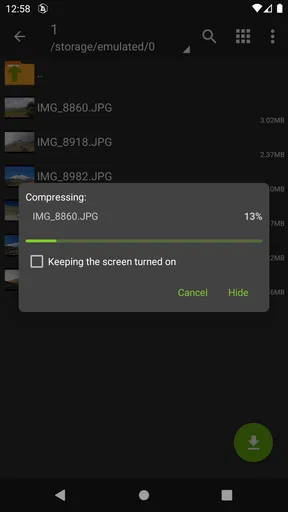
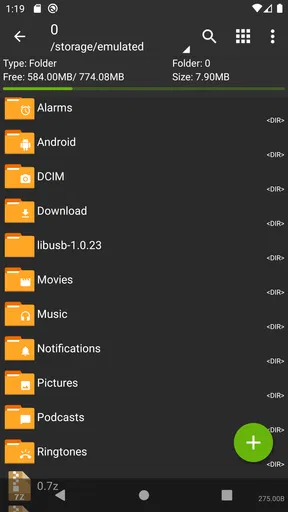
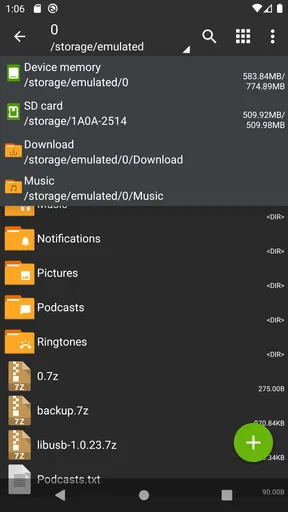
First things first, let’s talk about what ZArchiver actually is. It's a file archive management tool that lets you create and extract a wide variety of compressed file types. Whether it’s .zip, .rar, .7z, or a bunch of others, ZArchiver has you covered. It’s like having your own personal file manager right in your pocket, and trust me, that’s something you didn’t know you needed until you have it.
Setting It Up
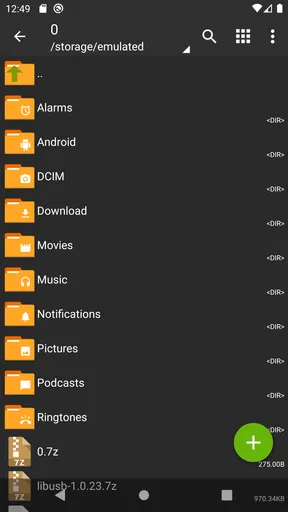
Alright, let’s jump into the setup. The download and installation are straightforward from the Play Store. Once you open it up, you’re greeted with a clean and intuitive interface. No complicated menus or unnecessary fluff—just the essentials to get you started. I found it super easy to navigate, which is always a plus when it comes to file management apps. The whole setup process took me less than a minute, and I was ready to explore its features.
It is an Android app, so I would not assume the same experience on an iPhone or iPad. On an Android phone, a useful first test is to open a small archive you already have, check that its contents appear as expected, and extract it into a folder you can find again. That gives you a low-stakes way to learn the basic flow before you rely on it for a work document or a large collection of files.
Features Galore
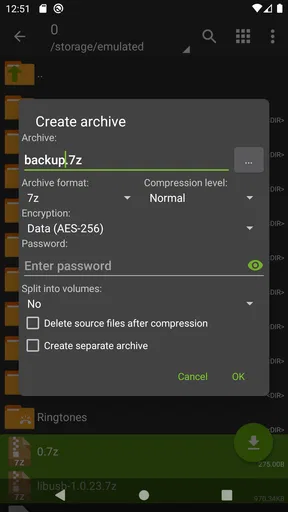
Now, onto the juicy stuff—the features. ZArchiver lets you create and decompress archives without breaking a sweat. I was particularly impressed with its ability to handle encrypted archives. You can also edit archives, like adding or removing files without needing to decompress the entire thing. This is a massive time-saver if you’re working with large files.
For an encrypted archive, the password is part of the workflow: you need to have the correct one to get into its contents. I would not keep trying guesses or assume that the app can recover a forgotten password. The practical benefit is being able to open a protected archive you are authorized to access, while the limitation is straightforward: encryption does not remove the need to know the credentials.
One standout feature is its support for multi-threading, which makes the whole process of archiving files much faster. Plus, it can open split archives and extract them seamlessly. Oh, and did I mention it also supports UTF-8/UTF-16 in filenames? For those dealing with international files, this is a big deal.
Filename support matters in ordinary situations, not just specialist ones. If a folder contains names written in different languages, preserving those characters makes it easier to recognize files after extraction instead of seeing confusing or damaged text. When sharing an archive with other people, I would still check the extracted result before sending it on, because the receiving device and its software can affect how a file is handled.
Performance and Usability
Performance-wise, ZArchiver runs smoothly, even on devices with older hardware. I didn’t experience any lag or crashes during my tests, which is always a relief. The app is lightweight, so it doesn’t hog your device’s resources.
In everyday use, speed is only one part of the experience. Archive size, the number of files, and the phone itself can all affect how long a job takes, so I would avoid assuming every operation will feel instant. For a large archive, I prefer to start the task when I have time to let it finish, keep the source files intact, and check the result before deleting or moving anything else.
The usability factor is off the charts. I mean, who doesn’t love an app that you can just pick up and use without having to watch a ton of tutorial videos? The interface is designed with simplicity in mind, making it accessible for both tech-savvy users and those who just want to get the job done.
Room for Improvement
No app is perfect, and ZArchiver is no exception. One thing I noticed is that while it excels at file management, it’s not as pretty as some of the other apps out there. The design is functional but could use a bit of a modern facelift.
That functional style is a trade-off rather than a deal-breaker for me. People who prefer a polished, image-led interface or a file manager that combines browsing, cloud storage, and archive tools in one place may be happier with a broader alternative. I would choose ZArchiver for the archive task itself, not because I expect it to replace every part of a more feature-rich file-management setup.
Another area that could be improved is the help section. While the app is fairly intuitive, a more robust support guide within the app would be beneficial for those needing extra assistance.
That gap is most noticeable when an operation does not work on the first try. I would troubleshoot methodically: confirm the archive is complete, keep split parts together, check the password for protected files, and choose a destination with enough room for the extracted contents. Those checks often clarify whether the issue is with the archive or simply the way it was organized, though a beginner may still want more guidance from the app itself.
Who will get the most from it
I would recommend it most to Android users who receive compressed files for work, study, or personal projects and want to deal with them immediately. A realistic example is getting a package of course materials in a group chat while away from a computer: you can inspect the archive, extract the relevant documents into a dedicated folder, and open them using the apps you already use. For someone who sends occasional bundles, creating an archive can also make a collection easier to keep together.
It is less compelling if you rarely encounter archives, already have a file manager whose archive support covers your needs, or want one app to handle many unrelated file tasks. It is also not the right choice for someone expecting a desktop-style workspace on a phone. I would skip it if the interface itself is a priority and the built-in tools you already have are enough.
Final Thoughts
So, should you download ZArchiver? If you’re in need of a reliable, straightforward file management tool, I’d say absolutely. It’s efficient, easy to use, and doesn’t come with the bloat that some of the other apps do. While it may not win any awards for aesthetics, it more than makes up for it in functionality.
ZDevs’ tool is rated for Everyone, and its current version is 1.0.10. It has been available since January 24, 2012, which helps explain why many Android users recognize it as an established archive utility. I would still make the choice based on your own habits rather than its history: frequent archive work makes its focused tools useful; rare archive work may not justify adding another app to your phone.
If you’re tired of the limitations of your current file manager or just looking for something new to try, give ZArchiver a shot. It’s free, and it might just become your go-to app for all things file-related.
Happy archiving, folks!
Verdict
Strengths of ZArchiver
- User-friendly interface for easy navigation.
- Supports a wide range of archive formats.
- Efficient file compression and extraction.
- Password protection for secure archives.
- No ads in the free version.
Limitations of ZArchiver
- No built-in file preview option.
- Does not support cloud storage integration.
- Limited features in the free version.
- May encounter issues with large archives.
- Interface can feel outdated.
Similar Picks in This Category
View All
Google LLC4.0

Gboard - the Google Keyboard
Google LLC4.5

Google Play services
Google LLC4.3

Google Play Store
Google LLC4.9

Files by Google
Google LLC4.5

SHAREit: Transfer, Share Files
Smart Media4U Technology Pte.Ltd.4.3
Frequently Asked Questions
What is ZArchiver and what can it do?
ZArchiver is a powerful file management app for Android that allows users to manage compressed files efficiently. It supports a wide range of archive types such as ZIP, RAR, 7z, and more. With ZArchiver, you can create, decompress, and view archive contents directly from your device, making it essential for managing files on the go.
Is ZArchiver free to use, and are there any in-app purchases?
Yes, ZArchiver is free to download and use. However, there is a Pro version available that offers additional features such as dark mode and image previewing. The Pro version can be purchased as a one-time payment, allowing users to enhance their experience with extra functionalities.
Is ZArchiver safe to use for managing sensitive files?
ZArchiver is generally considered safe for managing files on your device. It does not require unnecessary permissions and operates without needing access to the internet, ensuring your privacy. However, as with any app handling sensitive data, it's advised to use encryption options provided within the app for added security.
Does ZArchiver support password-protected archives?
Yes, ZArchiver supports opening and creating password-protected archives. This feature allows users to secure their files by encrypting them with a password. It's a valuable tool for maintaining privacy and protecting sensitive data when sharing files or storing them on your device.
Can ZArchiver handle large files and complex archives efficiently?
ZArchiver is designed to handle large files and complex archives efficiently. The app optimizes performance to manage extensive data without significant slowdowns. While performance may vary based on device specifications, ZArchiver generally provides a smooth experience with both small and large archives.
